

Building a shot list
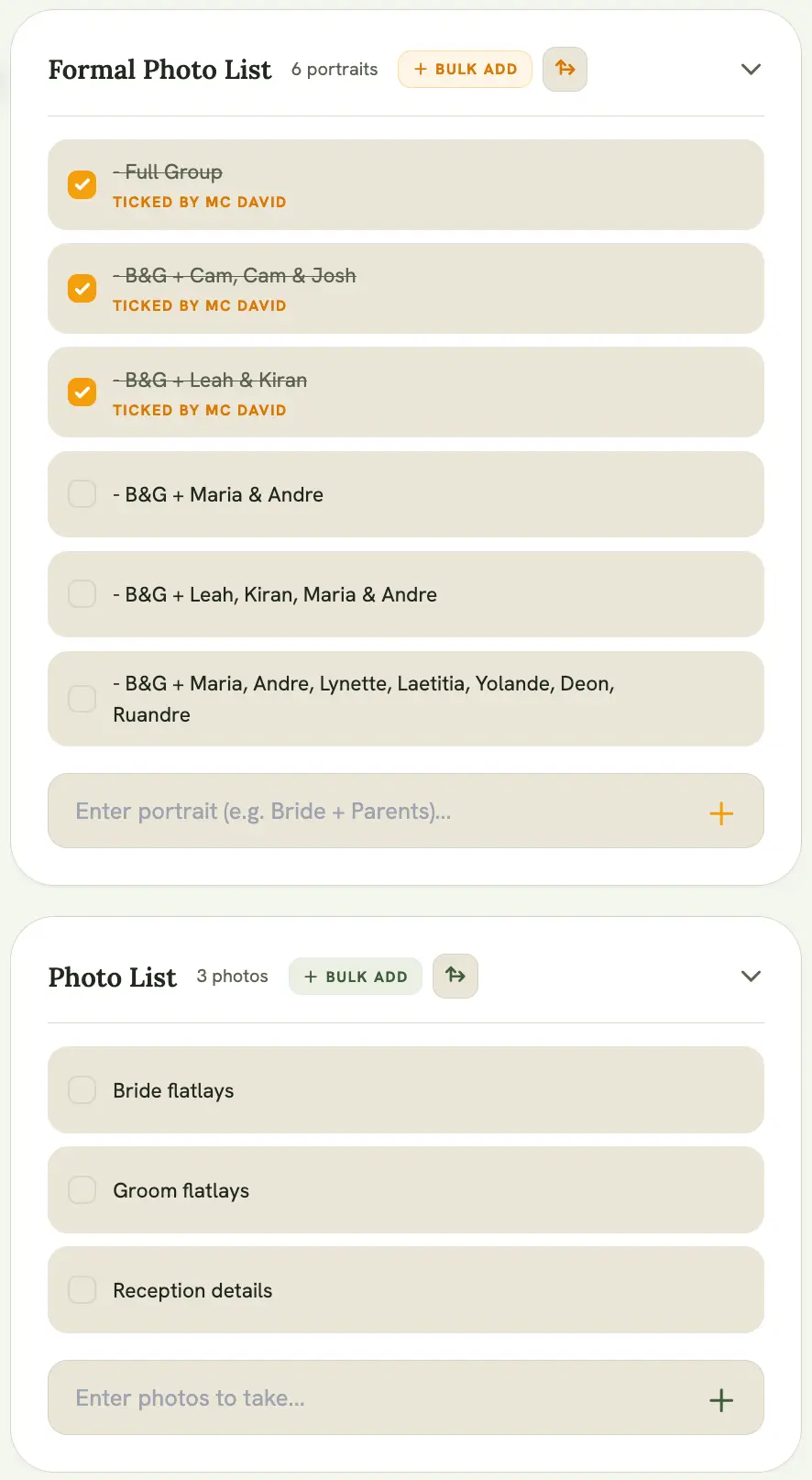
Plan exactly what you’re capturing on a job with a shot list, kept directly on the event so it’s on hand alongside the timeline and brief. Depending on the event’s category and type, an event can have up to three separate lists:
- Formal Portraits: wedding events only, for posed group and family photos
- Photo List: stills, shown for any event with photography enabled
- Video List: key shots for video, shown for any event with videography enabled
Adding a shot
Section titled “Adding a shot”Expand the relevant list on the event page and type into the input at the bottom. Each entry is added on its own line. Use bulk import if you’re working from an existing list rather than typing shots one at a time.
Checking off shots
Section titled “Checking off shots”As you work through the day, select a shot’s checkbox to mark it complete. Useful for keeping track mid-shoot, and for anyone else with access to the event to see progress live.
If you’ve published a list to the event’s public page (see Sharing events publicly), public viewers see it update live too. They can’t tick the photo or video lists, but they can tick a published formal photo list, in sync with your view.
Reordering shots
Section titled “Reordering shots”Select the reorder icon at the top of a list to switch into rearrange mode, then use the up/down arrows next to each shot to move it. Select Done Reordering to switch back to normal checklist mode.
Removing a shot
Section titled “Removing a shot”Hover a shot (or tap it on mobile) and select the × that appears to remove it from the list. You’ll be asked to confirm first.