

Collaborators & shares
Beyond public read-only links, MyArvo supports inviting collaborators directly to an event, useful for second shooters, assistants, or anyone else who needs to interact with the event rather than just view it.
Inviting a collaborator
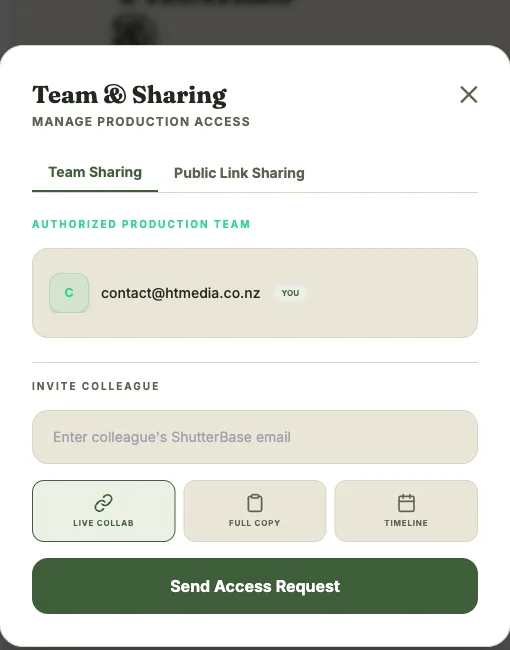
Section titled “Inviting a collaborator”Open the event and select Share to open the Team & Sharing modal, then stay on the Team Members tab. Enter the collaborator’s email and choose what kind of access to send:
- Live Collab: the collaborator sees and edits the same live event as you, in sync, so changes either of you make show up for both
- Full Copy: the collaborator receives their own independent copy of the event’s current details
- Timeline: the collaborator receives just the timeline, not the full event
The invite appears on the recipient’s dashboard as a pending invitation, showing your name and company name, which they can accept or decline. See Understanding the dashboard.
Pending invites
Section titled “Pending invites”Invites that haven’t been accepted yet are listed with a Pending label. As the owner you can:
- Resend the invitation email
- Select the trash icon to cancel the invite, which withdraws it entirely, useful if you sent it to the wrong address
Managing access
Section titled “Managing access”The Team Members tab lists everyone with access to the event. As the owner, you can remove a collaborator at any time from this list. Removing them immediately revokes their access to that event only; it doesn’t affect any other events they’re part of. Collaborators can also remove themselves at any time via Leave on the event page.
Collaborating on a Free plan
Section titled “Collaborating on a Free plan”A read-only Free account can still accept, decline, and leave invitations, and can tick off a formal shot list on a shared event. It can’t send invites, cancel them, remove collaborators, or otherwise edit a shared event.