

Sharing events publicly
Every event can be shared as a public link, useful for sending a client, wedding party, or crew member the day’s schedule without requiring them to have a MyArvo account.
Turning on the public page
Section titled “Turning on the public page”Open the event and select Share, then switch to the Client Sharing
tab. Use the Public page is on / off switch at the top to enable it.
MyArvo generates a permanent link using a readable slug based on the
event’s date and title (e.g.
/public/event/2026-08-14-wolf-river-wedding) rather than an internal ID,
so it’s easy to share and reasonably memorable.
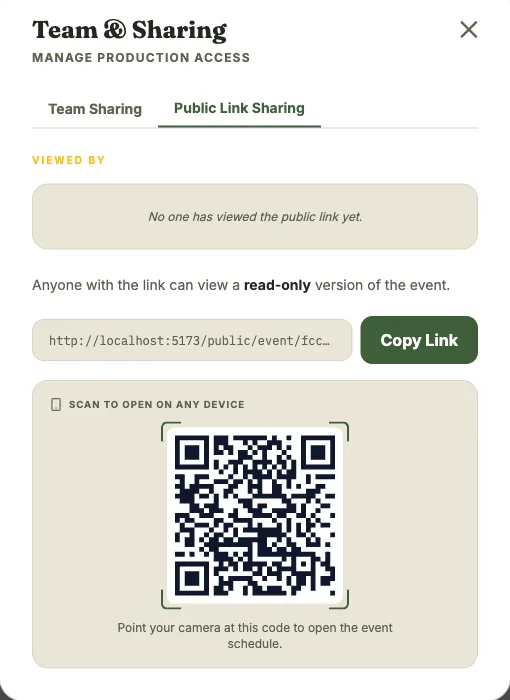
The QR code
Section titled “The QR code”A QR code is generated alongside the link, useful for a printed sign or a quick scan on the day. On the Client Sharing tab it sits behind a blurred Tap to scan QR tile: tapping it opens a clean full-screen view with a large QR code and the link, and nothing else, so you can hand someone your phone or hold it up at the venue without exposing the owner controls.
What’s visible on the public page
Section titled “What’s visible on the public page”The public view shows the event’s schedule and relevant brief details, without exposing your account data or other events. The schedule and brief are read-only.
Choosing which shot lists are public
Section titled “Choosing which shot lists are public”By default the public page doesn’t show your shot lists. Under Show on public page on the Client Sharing tab, toggle any of these on (each appears only once that list has items):
- Formal photo list (weddings)
- Photo shot list
- Video shot list
A published list shows on the public page live and updates as your team ticks items off. Visitors can’t edit the photo or video lists. The one exception is the formal photo list, which public visitors can tick in sync with your view, so a wedding party can follow along as formal shots get captured.
Who’s viewed the link
Section titled “Who’s viewed the link”The Client Sharing tab also lists everyone who has opened the public page, so you can see at a glance whether it’s actually reached the people you sent it to.