

Setting up your account
MyArvo supports both email/password accounts and Google Sign-In, so pick whichever is easier for you.
Creating an account
Section titled “Creating an account”- Go to go.myarvo.app, or straight to go.myarvo.app/signup
- Select the Create account tab (or Sign in with Google)
- If signing up with email, enter your email and choose a password
- If using Google, select your Google account and grant access
Creating an account means accepting MyArvo’s Terms and Privacy Policy, linked below the sign-up form.
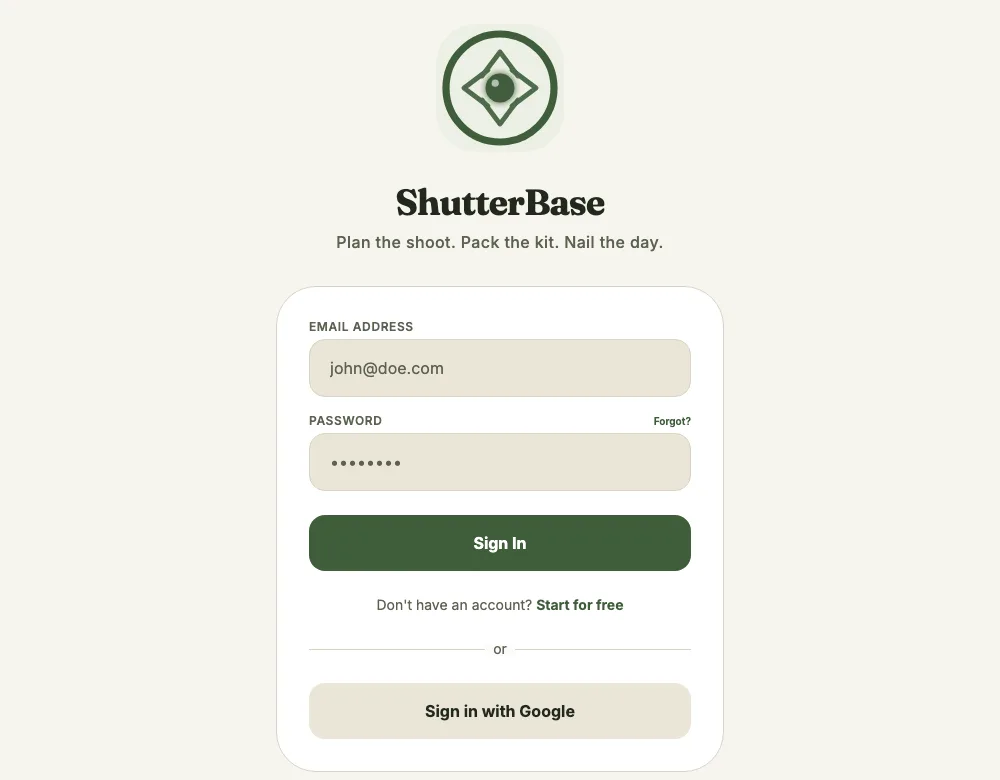
Your profile is created automatically on first sign-in. There’s no separate registration step.
Confirming your email
Section titled “Confirming your email”Email/password accounts get a verification link when they sign up, and a banner in the app prompts you to confirm. Until you do, you can sign in and look around, but you can’t create events, gear, checklists, poses, or content posts. Editing anything you already own keeps working. Google accounts arrive already verified.
If the link doesn’t turn up, use Resend email on the banner and check your junk folder.
Your trial
Section titled “Your trial”New accounts start with a 30-day free trial with full Pro access (no card needed). After that, your account stays open but becomes read-only until you choose a plan. See Plans & billing.
Signing in later
Section titled “Signing in later”Return to go.myarvo.app and sign in with whichever method you used to create your account. Forgot your password? Select Forgot? on the sign-in screen to get a reset link emailed to you.
Your profile
Section titled “Your profile”From Settings, you can update your display name and company name (the company name appears on shared run sheets and public event pages) and change your password. See Settings for details.
Light & dark mode
Section titled “Light & dark mode”MyArvo supports both light and dark mode, toggled from Settings. Your preference is saved automatically and will persist the next time you sign in, on any device.
Installing the app
Section titled “Installing the app”MyArvo is a Progressive Web App (PWA), so you can install it to your phone or desktop’s home screen for a full-screen, app-like experience. See Settings for how.